
A practical guide from JustNow: Time Log
How to keep a daily time log on iPhone
Keep a continuous time log by naming what you just did. When you save the current activity in JustNow: Time Log, the app records the elapsed interval and immediately starts counting the next one. Keep logging as you switch activities, and you do not need to enter a start time, an end time, or a duration each time.
You name the activity. JustNow connects the time.
The timer at the top of the Timeline shows the time that has not yet been logged. A short entry such as “Focused work” assigns that interval to the activity. After it is saved, the counter starts again for the next part of your day. Typing, voice, Quick Add, and widget shortcuts all support this same continuous flow.
You still decide what happened: JustNow does not automatically identify your activities. Log when you switch from one thing to another, so each interval describes what you actually did. If you missed several activities, you can adjust the times, fill earlier gaps, or resume from now. The screenshots below are real app screens with example records.
Log what you did. The next interval starts itself.
Open the Timeline and type a simple activity name, such as “Reading” or “Lunch”, then submit it. Or use the microphone, check the transcribed words, and submit. You do not need to add “from 9 to 10” or “for 30 minutes” when you are recording the current interval.
For an ordinary current interval under 12 hours, JustNow saves the activity from the end of your previous entry to the moment you submit it. The counter immediately starts counting the next interval. If you used Start fresh from now, that becomes the starting point instead. Simply typing or opening the microphone does not reset the counter; saving the activity does.
Repeat when you finish the next activity. This is how separate entries become a continuous time log without repeatedly entering start and end times or starting a new timer. If you want to record a different period, you can still specify a duration or a time range and review it before saving.
Name the activity → save the elapsed interval → the next interval is already counting.
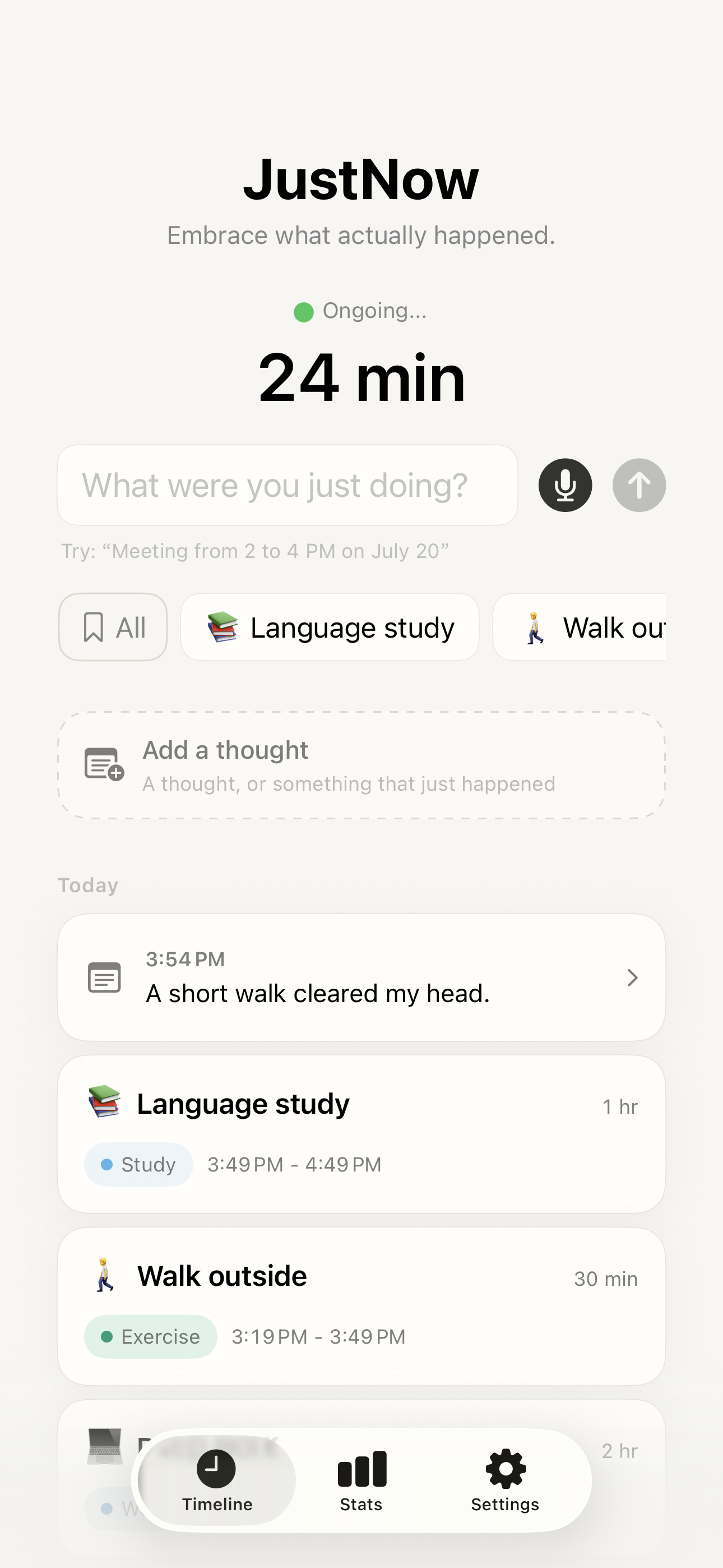
Three entries. No times to type.
Suppose your previous entry ended at 09:00. You record each activity when it finishes, using only its name. JustNow fills in the times shown here automatically.
After the 10:30 entry, the counter is already counting from 10:30 for the next activity. This example assumes you log at each transition and have not specified a different time range.
| When you log | What you enter | JustNow records |
|---|---|---|
| 09:45 | Focused work | 09:00–09:45 · 45m |
| 10:00 | Coffee break | 09:45–10:00 · 15m |
| 10:30 | Walk outside | 10:00–10:30 · 30m |
Open All and log from your whole library
In the Quick Add row below the input, tap All, the button with the bookmark icon. All Saved Activities opens with your complete library, grouped by category. Search part of an activity name to find it quickly.
Tap the activity you just finished. When you opened the library from the Timeline, this logs the current interval using its saved name, emoji, and category, just like a Quick Add button. It does not need to be one of your selected shortcuts. An interval of 12 hours or more opens confirmation before anything is saved.
Tap + to add an activity you often repeat. The library is free and has no activity limit. You can manage names, emoji, and categories here or through Settings → Timeline → Saved Activities; editing a saved activity leaves past entries unchanged.
Saved activities also appear as suggestions while you type. Selecting a suggestion fills the input; submit it when you are ready to log. A suggestion alone does not create an entry.
Timeline → All → find an activity → tap to log.
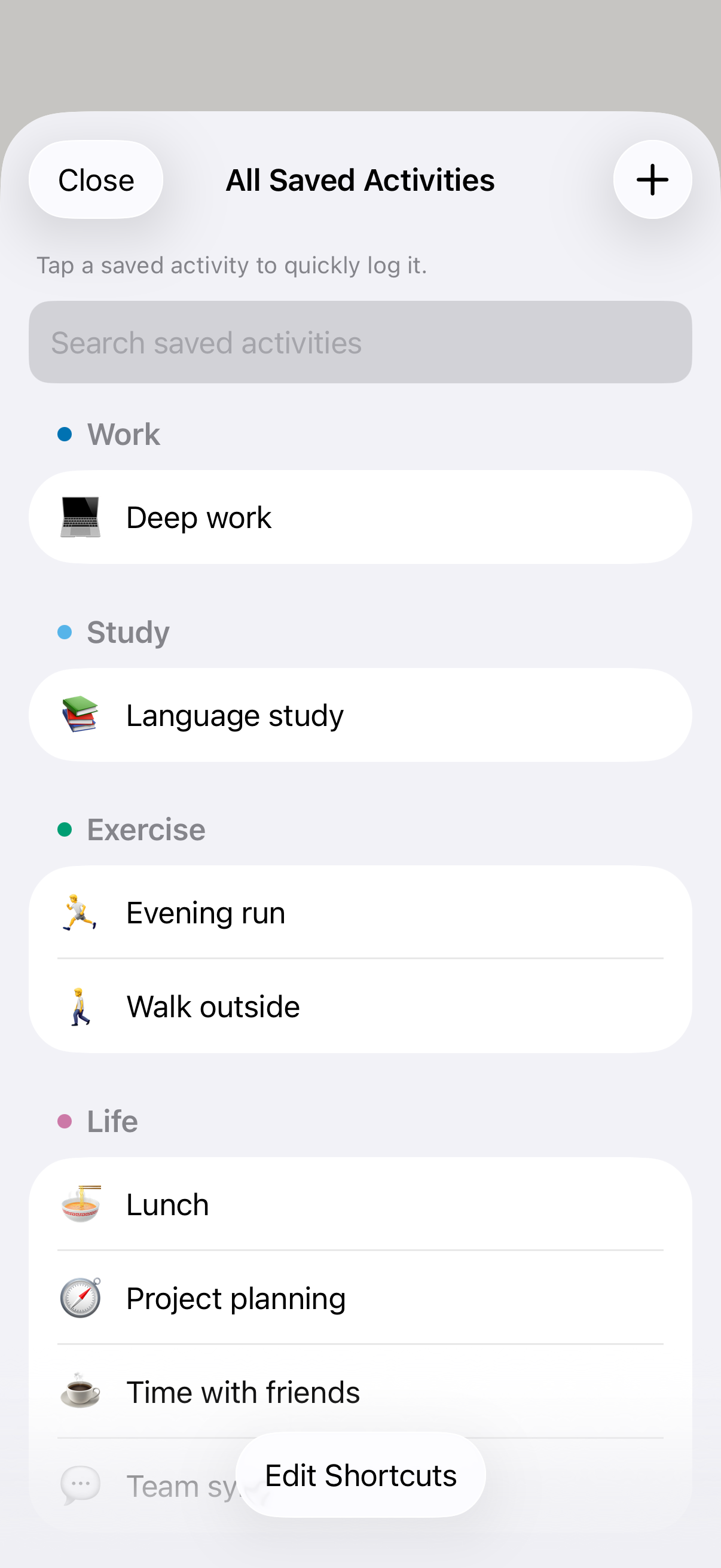
Put your most frequent activities within one tap
In All Saved Activities, tap Edit Shortcuts. Select up to six activities, in the order you want them to appear, then tap Done. You can choose fewer than six. Cancel leaves the previous selection as it was.
Your selected activities appear as Quick Add buttons on the Timeline and are used by widgets too. Tap one after doing that activity to record the elapsed interval and let the counter continue from there.
Your library can hold many more activities than your shortcut row. Removing a shortcut keeps the saved activity in All, and it keeps your existing time log. Adding a new saved activity does not automatically put it in the shortcut row.
Keep the few activities you use most in Quick Add. The rest remain one tap away in All.
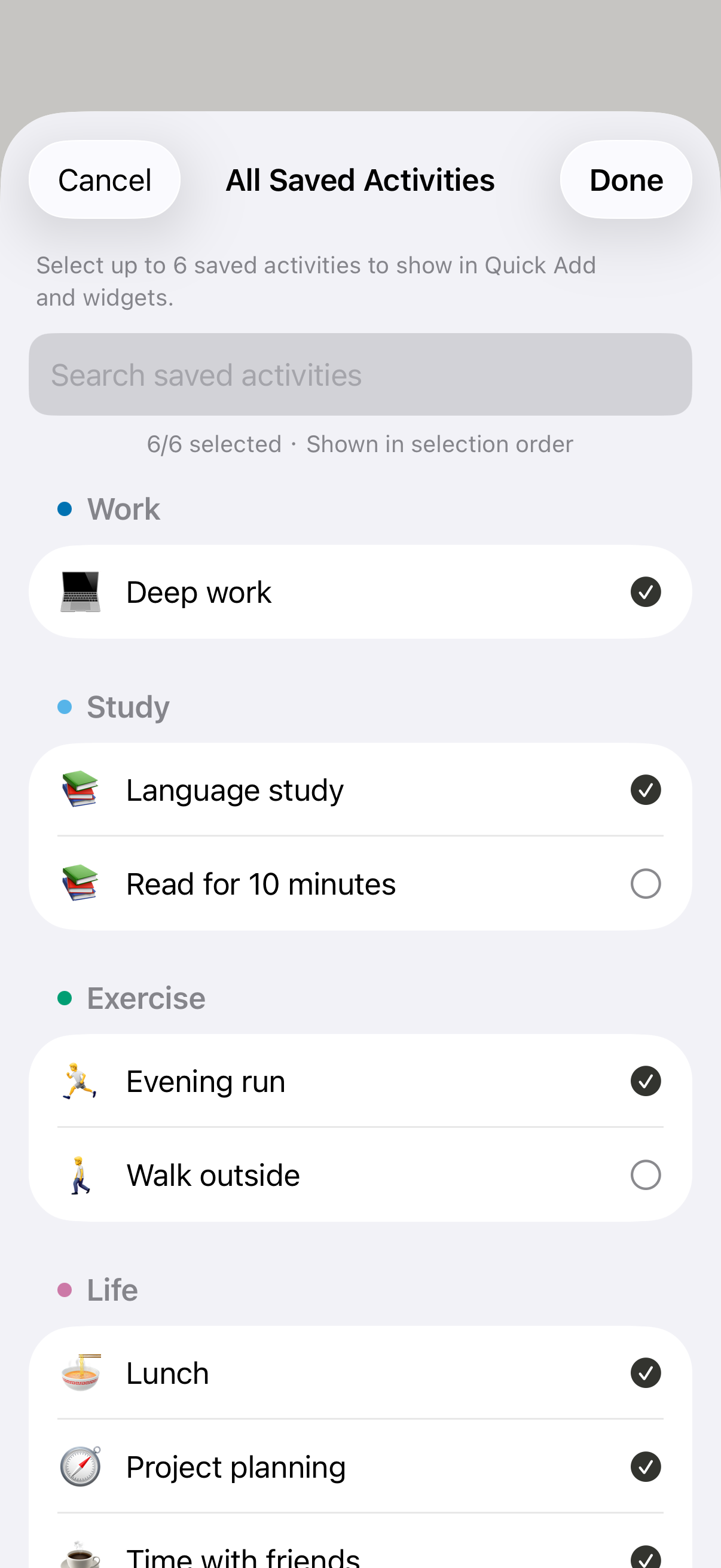
Continue the same log from your Home Screen
Add a JustNow widget using the iPhone Home Screen widget gallery. It shows the elapsed time and your latest entry, so you can see where your current log leaves off without first opening the app.
For an ordinary interval under 12 hours, tapping a widget activity records it directly. The app and widget use the same current interval and saved activities, so you can move between them throughout the day.
Choose the widget size that suits you: the medium widget shows the first three selected shortcuts, and the large widget can show up to six. After a gap of 12 hours or more, the widget hands logging over to the app for confirmation.
Finish an activity, tap its widget shortcut, and carry on.
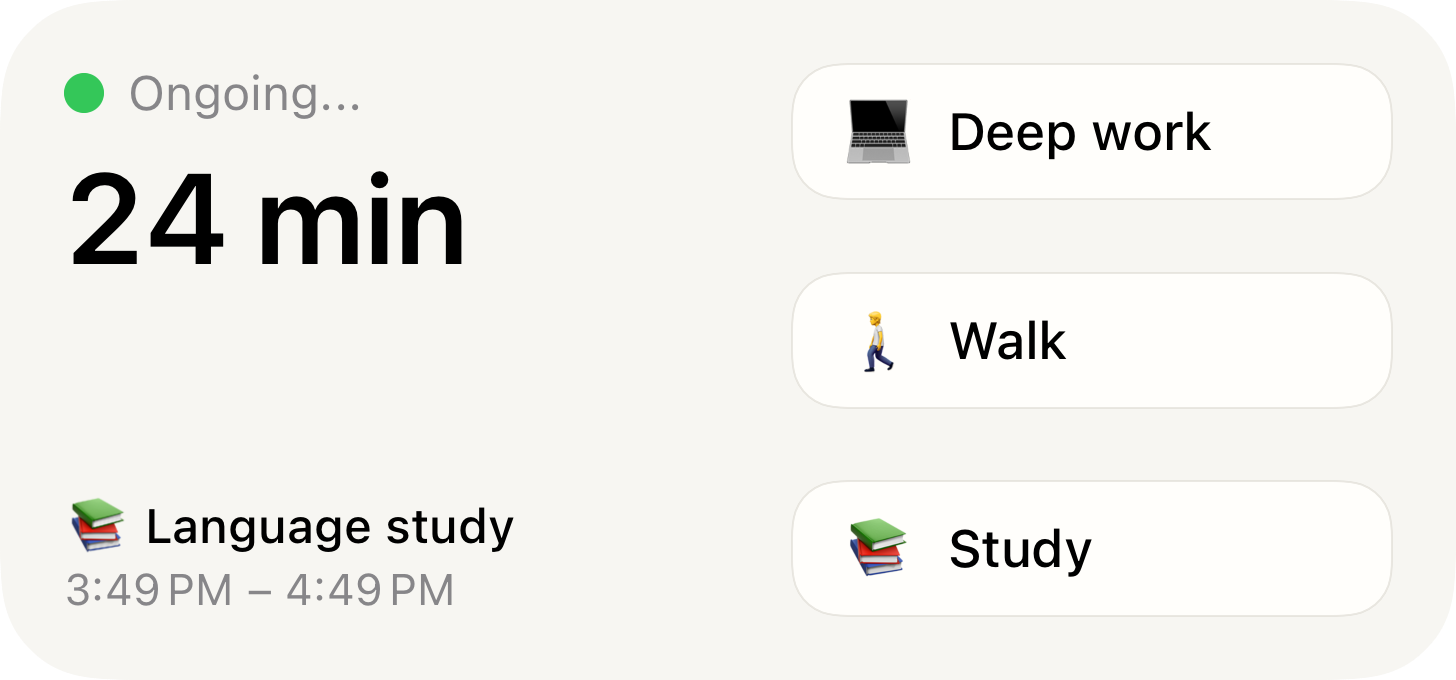
Catch up without interrupting your current interval
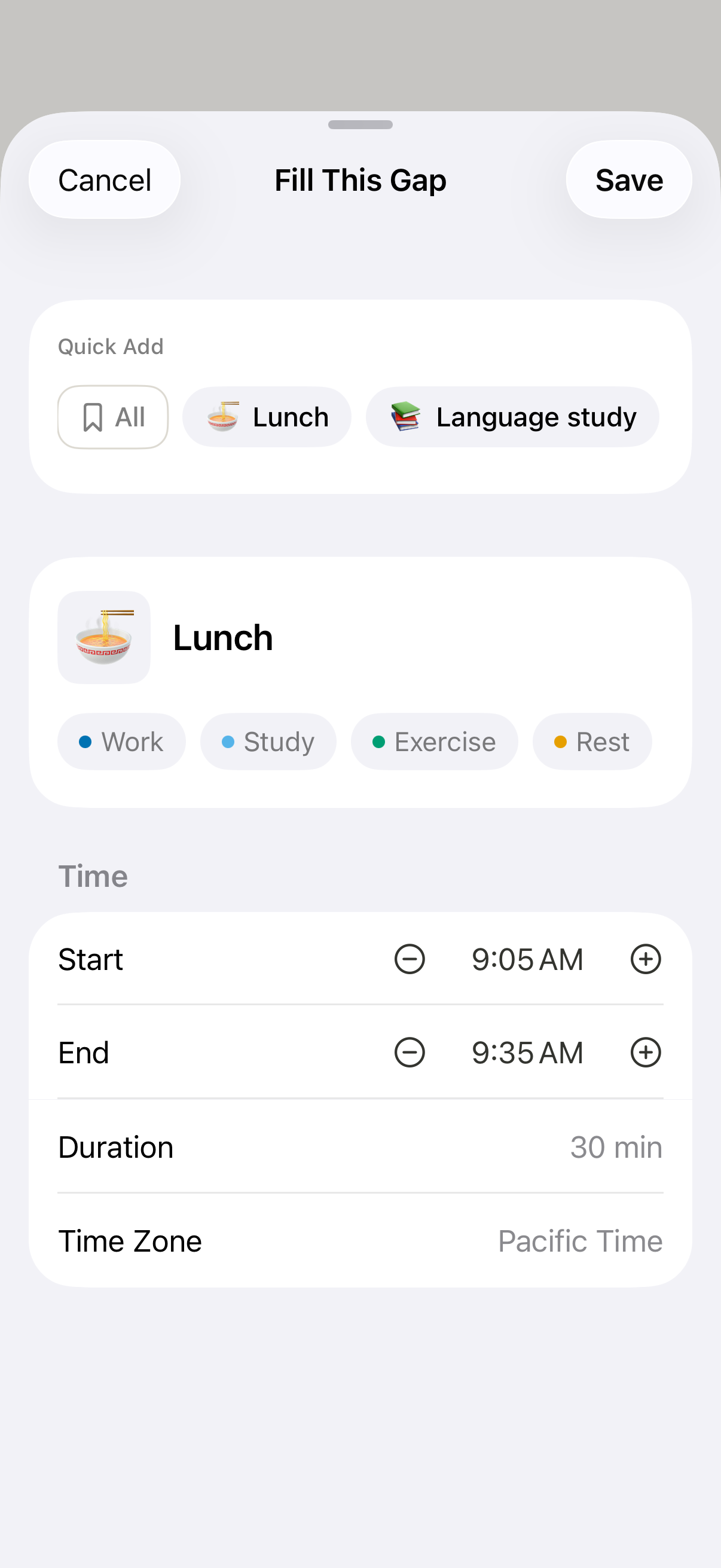
If you missed a transition, you can specify what happened and when, such as “Reading from 9am to 10am.” You can also tap an available gap between entries in the Timeline to open Fill This Gap. Check the start, end, and activity before saving.
The Quick Add area in Fill This Gap has its own All button. It opens Choose a Saved Activity, where you can search or browse your library. Choosing an activity fills its name, emoji, and category while preserving the dates, times, and time zone you have already set. Tap Save in the gap form to create the entry.
Filling an earlier historical gap does not reset your current timer. If the missing period contained lunch and a walk, give them separate entries rather than assigning the whole period to one activity. You can leave any part you do not remember unlogged.
Quick Add in a gap form fills the activity details; you keep control of the time range.
Pick up your log after a longer break
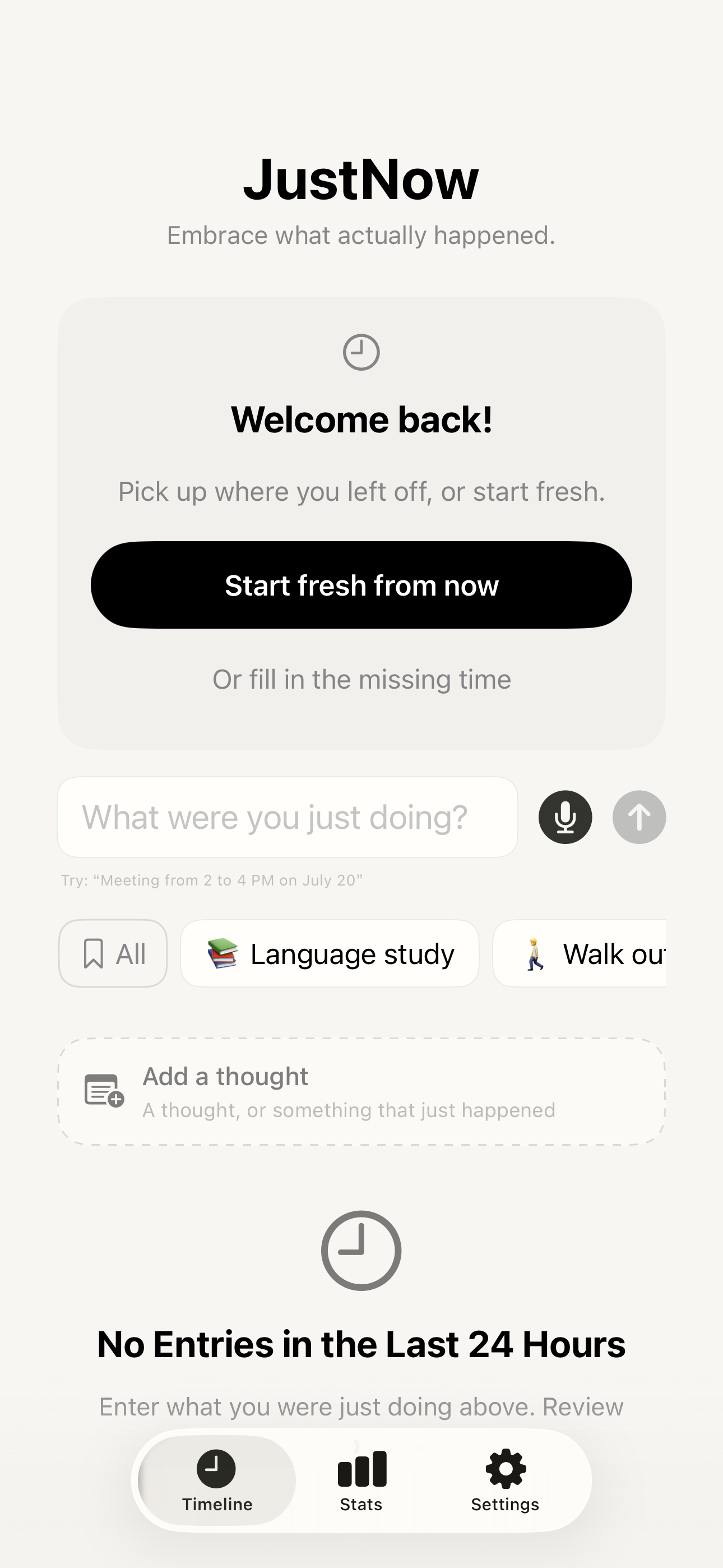
When your current unlogged interval reaches 12 hours, the usual timer is replaced by a Welcome back! card in the app and widget. This gives you a clear choice about how to continue after a long break.
Choose Start fresh from now to begin counting again from this moment. It does not create an activity for the missing hours, and it does not erase or change your existing entries. The unlogged time can stay unlogged.
Choose “Or fill in the missing time” to open a form for the full gap, including time across midnight. Pick an activity, check or adjust the range, and save. You can cancel without changing the timer’s starting point. A plain activity name or Quick Add tap after such a long gap also asks for confirmation.
Catch up if you remember. Start fresh when you would rather continue from here.
Keep a thought without splitting your activity
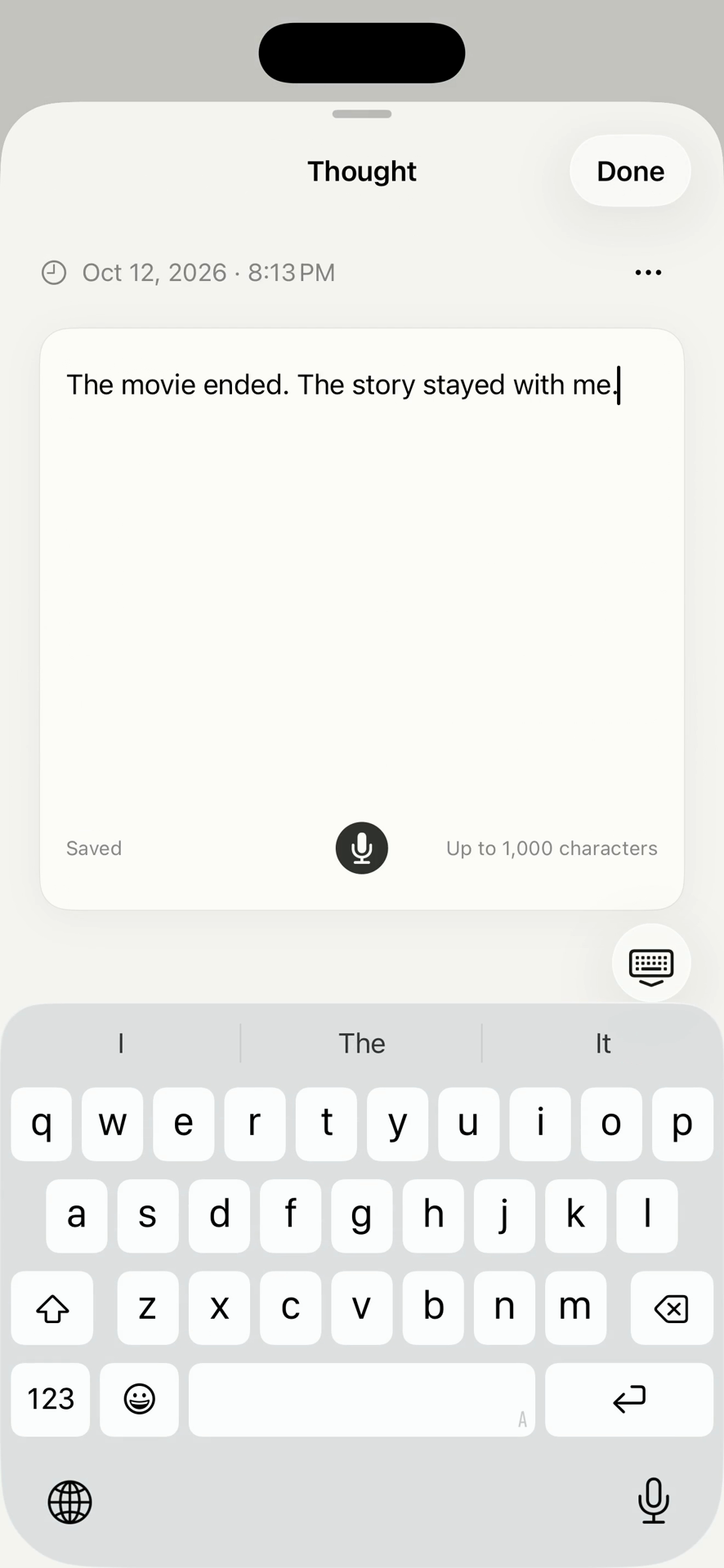
Tap Add a thought on the Timeline when you want to keep an idea, a feeling, or something that just happened. Write or dictate a sentence, and use the clock control if you want to adjust when it happened.
A thought has its own timestamp and appears alongside activities. It does not need a duration or category, does not split an activity, and does not reset the running counter. You can capture an idea in the middle of reading and log the reading session when you finish.
One thought for today is free each day, including a thought about earlier today. JustNow Unlimited adds more thoughts per day and thoughts for earlier dates. Your saved thoughts are also available in Settings → Thoughts → All Thoughts.
“The movie ended. The story stayed with me.”
See where the day went, then find the details
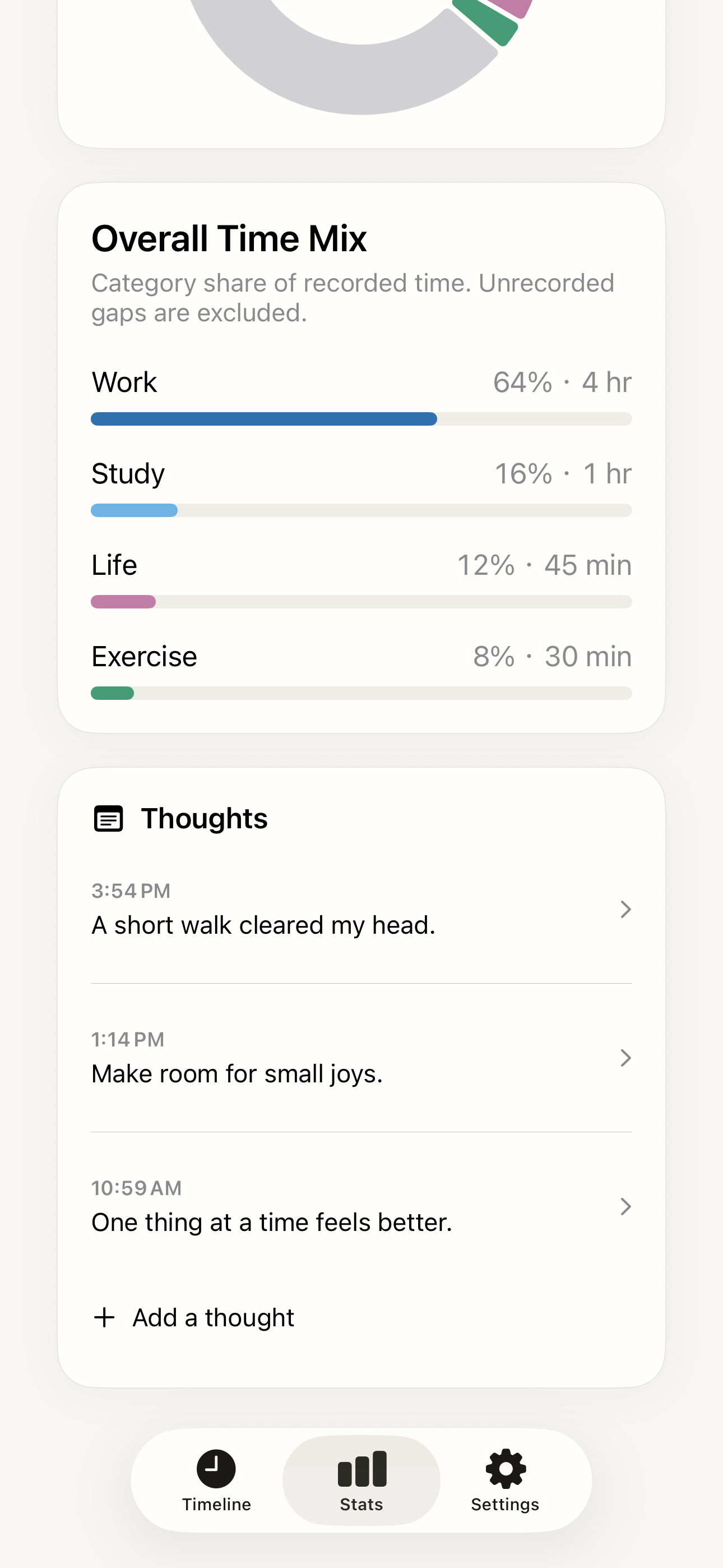
Scan the Timeline and open Stats → Review. Ask a question that matters to you: Where did my afternoon go? Did I make room for a break? The activity breakdown and that day’s thoughts give you both time and context.
Read the charts in the context of what you recorded. In this screenshot, Work is 4 hours out of 6 hours 15 minutes of recorded activities, or 64%. Unrecorded gaps are excluded from this breakdown, so that is not 64% of an entire 24-hour day.
Today’s review is free. JustNow Unlimited lets you select past days, explore Trends, and search your history. Search activities by name or emoji, then narrow by category, a single day, or a date range. You can also browse a filtered period without entering a keyword.
Switch search to Thoughts to find a phrase or browse thoughts from a particular day or date range. Open a result to read or edit it. This makes the log useful weeks later, as well as at the end of today.
A continuous record gives you something concrete to look back on.
Make the log work the way you do
Adjust an entry when you need to
Tap an activity card to edit its name, emoji, category, or start and end times. When changing an emoji used by several entries with the same name, you can update just that entry or all matching entries. Updating all also updates the matching saved activity.
Keep repeated entries tidy
The free option in Settings → Timeline can group consecutive matching activities into an expandable card. Entries must touch in time and share the same name, emoji, category, and time zone. The original entries stay separate for statistics, search, and export.
Use categories that mean something to you
Start with the built-in categories. JustNow Unlimited lets you add custom categories, merge categories, and reorder them in Settings. Saved activities keep a name, emoji, and category together for consistent future entries.
Keep a copy of your record
Settings → Export Data (JSON) is free and includes activities, categories, thoughts, and saved activities. JustNow Unlimited adds optional private iCloud sync and JSON import on another device. Import does not overwrite data already on that device.
Before you start
Do I have to enter start and end times for every activity?
No. When you continuously log the current interval, JustNow uses the previous entry’s end—or a later Start fresh from now point—as the start, and your submission time as the end. Saving that activity automatically starts counting the next interval. Explicit times are useful for corrections or backfilling; gaps of 12 hours or more require confirmation.
Does the timer automatically know what I am doing?
No. The timer measures the unlogged interval; you provide the activity by typing, voice, Quick Add, or a widget. JustNow connects the times automatically when you log, but does not automatically observe or identify your activities.
Can I quick log an activity that is not in my shortcut row?
Yes. Tap All on the Timeline to open All Saved Activities, search or browse, then tap the activity to log the current interval. The free library has no activity limit; up to six can be selected for Quick Add and widgets. Gaps of 12 hours or more require confirmation.
What do I need to try JustNow?
JustNow: Time Log is made by Xylea for iPhone and requires iOS 26 or later. It supports English and Simplified Chinese. Today’s activity logging, saved activities, Quick Add, widgets, and JSON export are free. Simple activity names can log the current interval without Apple Intelligence. Automatic interpretation of time expressions depends on Apple Intelligence availability; manual time entry is also available.
Where is my time log stored?
Records are stored on your device by default. JustNow Unlimited offers optional private iCloud sync. You can export your data as JSON. The app requires no account and has no ads or third-party analytics.
Start with the next small part of your day.
Free to download · iPhone · iOS 26 or later